Related articles: Library & Inbox, Posts, Galleries, Cards
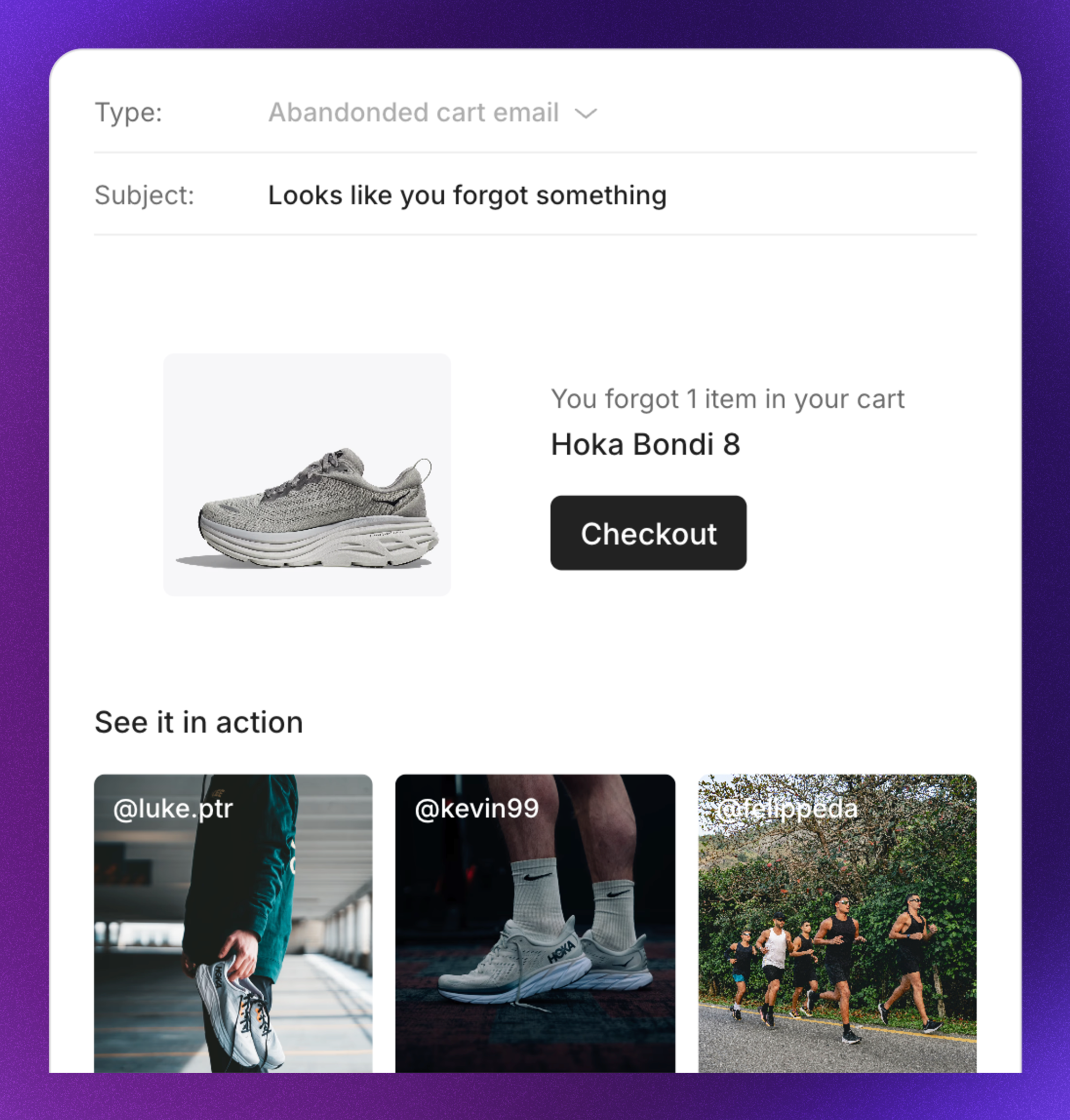
Email widgets let you showcase UGC directly in your email campaigns. Add shoppable content that links to your products and updates automatically with your latest approved posts. Navigate to UGC -> Email widgets to manage your email widgets. Email widget example

Available email widgets

WidgetDescriptionSupported platforms
StaticDisplay specific posts you manually selectAll platforms
DynamicDisplay posts from selected content sources that update automaticallyKlaviyo, Voyado
Instagram feedShow the latest approved posts from your brand’s Instagram feedKlaviyo, Voyado
Abandoned cartDisplay posts featuring products left in the cartKlaviyo
Post-purchaseDisplay posts featuring products the customer just boughtKlaviyo

Create an email widget

  1. Navigate to UGC -> Email widgets
  2. Click New email widget
  3. Select the widget type
  4. Optional: Click More and rename your widget
  5. Click Save changes
Duplicate existing email widgets to reuse design and customization settings.

Select content

How you select content depends on the widget type.

Static content

Hand-pick specific posts to display.
  1. Click the Content tab
  2. Click Static content
  3. Click Add posts from library
  4. Select the posts you want to include
  5. Click Add posts
  6. Click Save changes
To reorder posts, go to the Content tab, click All posts, and drag posts to your preferred order.

Dynamic content

Set filters to automatically include matching posts.
  1. Click the Content tab
  2. Click Dynamic content
  3. Click Filters
  4. Apply your filters
  5. Click Save changes
New posts that match your filters are automatically included in future sends.

Pin posts

Pin posts to keep them in a specific position. Pinned posts won’t be replaced when new content is added.
  1. Click the Content tab
  2. Click All posts
  3. Drag a post to pin it to that position
  4. Click Save changes

Design settings

Customize how your email widget looks.
  1. Click the Design tab
  2. Apply your settings
  3. Click Save changes
New email widgets inherit the width setting from your most recently created widget.

Design settings

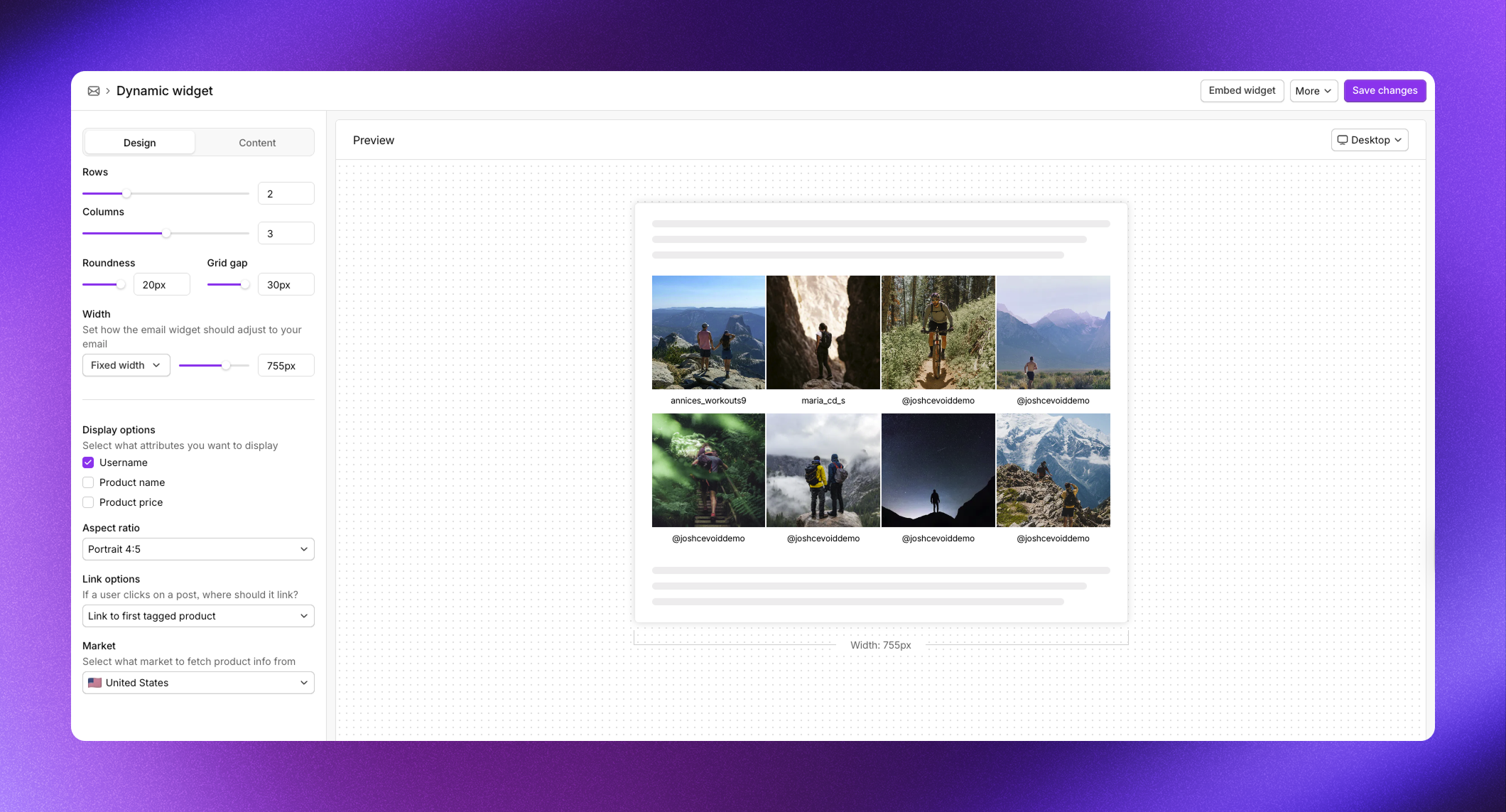
These settings are available when embedding via HTML code. Email widget design
SettingDescriptionOptions
RowsNumber of rows1-5
ColumnsNumber of columns1-4
RoundnessCorner roundness0-20 px
Grid gapSpace between posts0-30 px
WidthFixed width to match your email templatePixels
Display optionsInformation below each postUsername, Product name, Product price
Aspect ratioPost aspect ratioLandscape 16:9, Landscape 3:2, Square 1:1, Portrait 4:5, Portrait 2:3, Portrait 9:16
Link optionsWhere posts link toLink to first tagged product, Profile’s Instagram, Company Instagram, Custom link for all posts, No link
MarketMarket for product infoSelect from your markets
Set a fixed width that matches your email template’s width. Some email clients don’t properly apply width limitations.

Voyado settings

When using Voyado’s native Cevoid block, layout is controlled in Voyado. Cevoid controls:
SettingDescriptionOptions
Display optionsInformation below each postUsername, Product name, Product price
Aspect ratioPost aspect ratioLandscape 16:9, Landscape 3:2, Square 1:1, Portrait 4:5, Portrait 2:3, Portrait 9:16
Link optionsWhere posts link toLink to first tagged product, Profile’s Instagram, Company Instagram, Custom link for all posts, No link

Fallback setting

Available for Abandoned cart and Post-purchase widgets. When enabled, the widget uses Cevoid’s fallback AI to make sure there’s always something to show, even for products with limited UGC. How content is prioritized:
  1. Posts tagged with the exact product variant
  2. Posts tagged with other variants that share attributes (like color or size)
  3. Posts tagged with the primary product or any variant of the same product
  4. Posts featuring similar products based on Cevoid’s AI
When fallback is enabled, the AI finds similar products based on criteria you can prioritize in Settings -> AI:
CriteriaWhat it matches
NamesProducts with similar titles
Visual appearanceProducts that look alike in photos
Categories & CollectionsProducts from the same or related categories and collections
Product specsProducts by size, color, material, etc.
To enable fallback:
  1. Click the Design tab
  2. Toggle on Fallback posts
  3. Click Save changes

Embed email widgets

How you embed depends on your email platform.
For static widgets:
  1. Navigate to UGC -> Email widgets and select your widget
  2. Click Embed widget
  3. Select the market
  4. Copy the HTML code
  5. In Klaviyo, open your email campaign or flow
  6. Add a Text block or HTML block
  7. Paste the code
  8. Save
For dynamic widgets (Dynamic, Instagram feed, Abandoned cart, Post-purchase):First, add the web feed to Klaviyo:
  1. In Cevoid, click Embed widget
  2. In Klaviyo, go to Settings -> Other -> Web feeds
  3. Click Add web feed
  4. Copy and paste the web feed name from Cevoid
  5. Copy and paste the Feed URL from Cevoid
  6. Set request method to GET
  7. Set content type to JSON
  8. Click Add web feed
Then embed the widget:
  1. Copy the HTML code from Cevoid
  2. In Klaviyo, open your email campaign or flow
  3. Add a Text block or HTML block
  4. Paste the code
  5. Save
The web feed ensures content updates automatically without creating new widgets for each email.

Videos in email widgets

Email widgets display images only. When a video post is included, the widget shows the video’s cover image instead.
Adjust a video’s thumbnail in Posts.